
Email Insights
Bear AI’s Email Insights module helps support teams identify and act on emotional tone in customer communications. It allows proactive issue resolution by analyzing sentiment at the email and sentence level.
Bear AI modules are built with a powerful feature set designed to streamline your workflows and surface critical insights fast.
Features
Bear AI’s Email Sentiment module provides structured, actionable insight into how your team communicates with customers. Rather than relying on vague “feelings” or keyword triggers, our AI analyzes tone contextually at both the message and sentence level. It’s optimized for support teams who need fast, clear visibility into client satisfaction risk signals.
Real-time sentiment analysis (positive, neutral, negative) for every incoming message
Sentence-level breakdowns to spot specific escalation risks within an email
Interactive dashboard showing sentiment trends, keyword frequencies, and inbox-level summaries
Targeted inbox monitoring: connect only the mailboxes that matter
Ability to delete sensitive emails from the dataset to prevent team-wide visibility
Keyword filtering and rules engine to fine-tune what gets analyzed and flagged
Trend Analysis
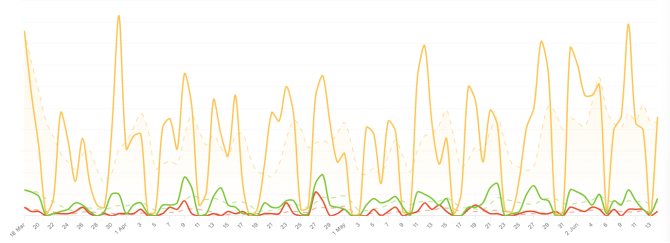
Bear AI’s Trend Analysis shows your email sentiment trends over time. You can filter by client or by date range.
Latest Emails
Latest Emails shows an aggregate view of the emails delivered to or sent from every mailbox you’ve linked to Bear.
Users can filter by a variety of factors, including:
- Email Sentiment (overall)
- If a Negative Sentence is present.
- Date Range
- Client
- Incoming / Outgoing Email
Users with permission can easily view the email contents or delete sensitive emails.

Sentiment Analysis
Bear AI’s Sentiment Analysis analyzes the email as a whole as well as each sentence individually.

Getting Started
In the left sidebar, click “Sentiment Analysis” then “Email Accounts.”
Add your Microsoft or Google account(s)
Select which inboxes to monitor
Bear AI begins analyzing incoming emails automatically

Implementing Email Insights
Implementation is fast and admin-friendly. No lengthy onboarding or dev work required. Bear AI connects directly to Microsoft and Google accounts using approved and secure OAuth methods. You can onboard an entire support team in minutes.
Navigate to the Email Sentiment section
Authenticate and link the desired inboxes
Define filters (optional) to refine what’s monitored
View insights in real-time via the Sentiment Dashboard
Assign user roles:
View-Only: Users can explore trends and flagged messages
Write: Users can connect new inboxes or configure filters
- Delete: Can delete messages and email inboxes, but cannot add new email inboxes.
Admin: Full access, including sentiment deletion, rules, and group management
Admins can also create security groups to manage module-level access — ensuring that only the right individuals can view inbox content, adjust configuration, or trigger actions.

Best Practices & Troubleshooting
- Limit analysis to customer support inboxes for signal clarity
- Monitor both incoming and outgoing emails separately.
- Use dashboards weekly to guide support team coaching
- Customize alerting thresholds to flag critical sentiment shifts
- Create user groups inside the Admin Panel to limit which users can see and delete emails from Bear.
- Add Clients inside the Admin Panel so you can drill down sentiment by client.
- Add Clients inside the Admin Panel so you can drill down sentiment by client.
- Delete sensitive emails with one-click in the “Latest Emails” tab.
Pricing
$0.03 per email processed
Benefits Reconciliation
The Benefits Reconciliation module in Bear AI streamlines the process of matching benefits data between carrier invoices and payroll platforms. Supporting over 50 carriers, the module automatically extracts essential details from carrier invoices, such as covered individuals, plan names, and benefit amounts.
How It Works
Upload Carrier Invoice: Start by uploading the carrier invoice. If the carrier isn’t supported, a ‘General’ option is available for flexible data extraction.

Upload Reconciliation File: Upload the reconciliation file from supported platforms like iSolved or Employee Navigator. They select the relevant spreadsheets within the file for reconciliation.

Verify Data: The AI displays all extracted data for review. Search and verify individual entries, ensuring the AI has accurately matched individuals and plan details.

Linking and Matching: Link plans from the invoice to plans in the reconciliation file, supporting many-to-many matching scenarios. The system uses smart linking to handle variations in names and plan structures.

Reconciliation Results: Once reconciliation is complete, download an Excel report highlighting any discrepancies, missing employees, or issues that need manual review.

Getting Started
Upload the carrier invoice and select the carrier.
Upload the reconciliation file from iSolved or Employee Navigator, and you’re ready to go.
Best Practices & Troubleshooting
In Step 3, always verify a random sample of employees to ensure accurate data extraction.
Double-check plan linking to minimize discrepancies.
Pricing
$0.22 per record reconciled
Payroll Comparison
The Payroll Comparison module in Bear AI enables seamless comparison of payroll reports from any structured Excel-based payroll platform. This module helps identify discrepancies between payroll periods and ensures accuracy in payroll data.
How It Works:
Create a Configuration: Users begin by setting up a configuration that extracts column names from a reference payroll file. This configuration can be tailored to specific clients, regions, or file types.

Set Thresholds: For each column, users assign a deviation threshold, either as a percentage or a nominal value. For example, if a column’s value should not deviate by more than 10% from the previous period, the system will flag deviations that exceed this threshold.
Upload Payroll Files: Users upload the current payroll file and a comparison file from the previous payroll period. The AI then analyzes these files against the configuration and identifies deviations.

Review Deviations: The module flags any deviations that exceed the set thresholds and provides a summary of these discrepancies. Users can quickly see which employees had the largest deviations, both by percentage and amount.

Getting Started:
Create and customize a configuration for your payroll files.
Set thresholds for acceptable deviations.
Upload the current and previous payroll files, and let the AI do the comparison.


